How to post to multiple social media platforms at once
To post to several social platforms at once, use a scheduler that connects them all, such as HeyOrbit with its 10 platforms: write the post once, select every account, adjust the caption and media where a platform needs it, and publish or schedule them together. The real work is in the differences, because each platform has its own character limit, media rules and post types.
By HeyOrbit teamLast updated 5 min read
On this page+
One post, 10 sets of rules#
Posting the same thing everywhere sounds simple until a platform refuses it. The caption that fits Instagram is too long for X, the photo carousel that works on LinkedIn can't go to YouTube, and a Google Business Profile post can't carry a video. Here is how the platforms HeyOrbit publishes to compare, from the same rules the composer checks:
| Platform | Caption | Most photos | Longest video | Media required | First comment |
|---|---|---|---|---|---|
| 2,200 characters | 10 | 15 minutes | Yes | Yes | |
| 63,206 characters | 10 | 4 hours | No | Yes | |
| X | 280 characters | 4 | 2 minutes 20 seconds | No | Yes |
| 3,000 characters | 20 | 30 minutes | No | Yes | |
| TikTok | 2,200 characters | 35 | 10 minutes | Yes | No |
| YouTube | 5,000 bytes | Thumbnail only | 12 hours | Yes | Yes |
| Threads | 500 characters | 20 | 5 minutes | No | Yes |
| 500 characters | 5 | 15 minutes | Yes | No | |
| Bluesky | 300 characters | 4 | 3 minutes | No | Yes |
| Google Business Profile | 1,500 characters | 1 | No video | No | No |
The tightest caption limit is X's 280 characters, so a caption written for every platform at once has to fit there, or be shortened for it.
How to post to several platforms with HeyOrbit#
Connect every account to one workspace
Connect each brand's accounts to its own workspace from Accounts. Each social account is billed at $6 (₹499 in India) a month; workspaces, users and posts are unlimited (connect accounts).
Start with the media
Click Create post and add the photos or the video first. Accounts that can't take that media (YouTube for a photo, for example) show why they can't be picked, so you know which posts to make separately.
Select the accounts
Tick every account the post should go to; Select All picks them all and the platform chips filter a long list. Remember preselects the same accounts next time.
Write once, then adjust per platform
Write the caption with Use same caption for all on. The toolbar counter shows the strictest platform you picked, and a chip per platform turns red where you're over. Switch it off to edit each platform's caption: your text is copied into every account first, so you only change what needs changing (create a post).
Fill in each platform's settings
Open Platform settings for the extras: Reel or Story on Instagram, the YouTube title and privacy, the Pinterest board, the Google Business Profile button, thread mode on X, Threads and Bluesky (per-platform settings).
Preview every platform and schedule
Open Preview and click through each platform. Fix anything under issues to fix before scheduling, then schedule the post for all its accounts at once.
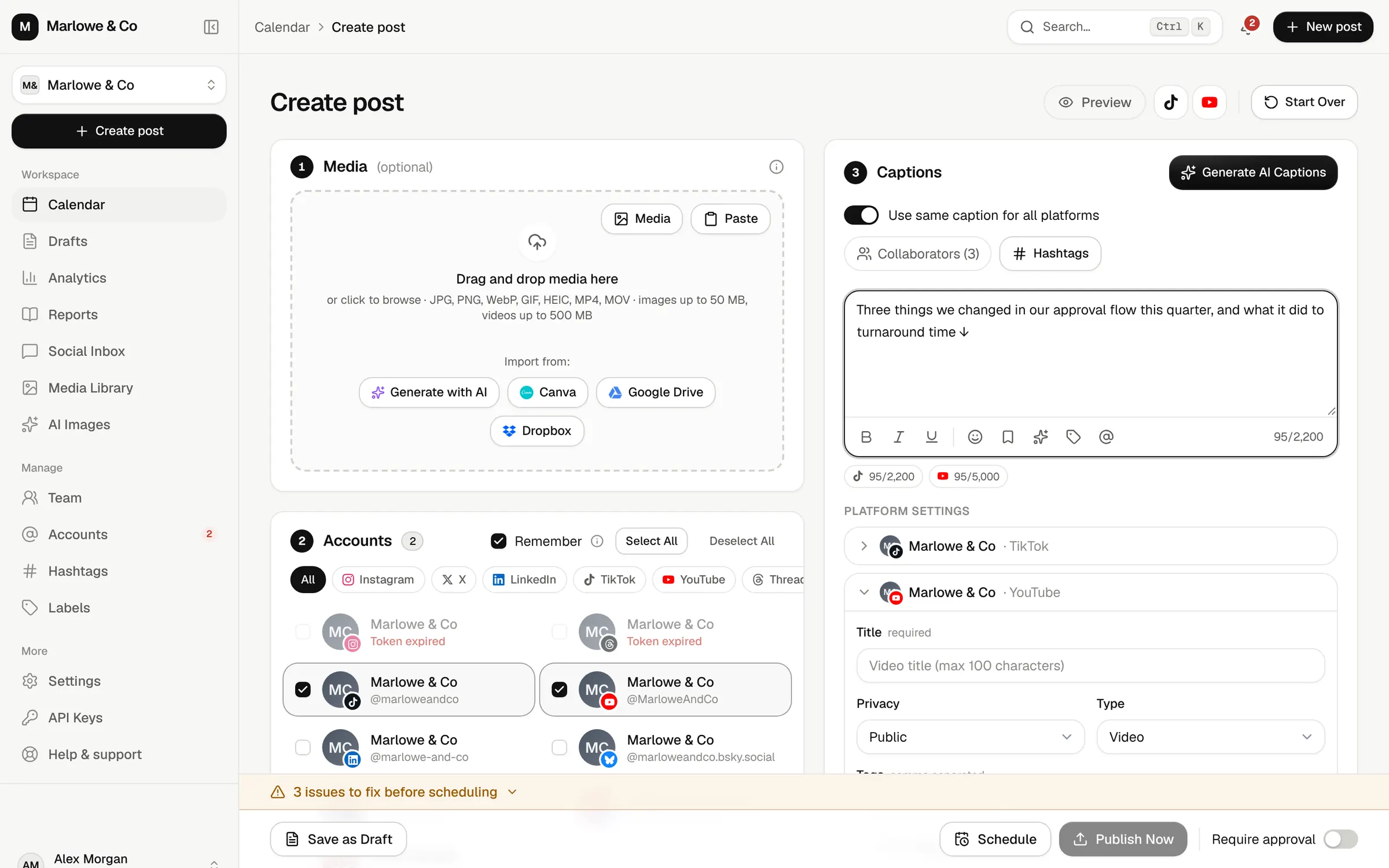
One caption, a counter per platform, and Platform settings for each account.
Adapt, don't just copy#
Identical posts everywhere are easy to schedule but rarely the best version for each audience. Small changes go a long way:
- Lead with the point. Every platform shows the first line before folding the text, so the opening sentence has to work on its own everywhere.
- Hashtags differ. Instagram takes up to 30; on Threads only the first hashtag becomes the post's topic; Google Business Profile posts don't use them at all.
- Links differ. On X every link counts as 23 characters; on LinkedIn and Facebook you might keep the link for the first comment.
- Formats differ. The same vertical video can be a Reel, a Short and a TikTok, each with its own caption and settings (one video for every vertical feed).
- Several X accounts. X's authenticity rules don't allow identical or nearly identical posts across accounts you run (X Help Center, as of November 2026). Write a version per account.
Common mistakes and the errors they cause#
- Photos selected for YouTube. YouTube needs exactly one video, so the account can't be picked for a photo post. Make a separate post for it.
- No media for Instagram, TikTok, Pinterest or YouTube. They don't publish text-only posts.
- A caption that's fine on one platform and over on another. The counter chips under the caption show each platform's count; red means over.
- A missing YouTube title or Pinterest board. Both are required, in Platform settings.
- Everything at the same minute. A post goes to all its accounts at its scheduled time. To stagger platforms, duplicate the post and give the copy another time.
FAQ
Is there a free way to post to all social media at once?
Each platform's own scheduler only posts to that platform. HeyOrbit is free to sign up and charges $6 (₹499 in India) a month per connected account, with every feature included and no per-user fees.
Is cross-posting the same content bad?
Not by itself, but the same words and the same crop rarely suit every platform. Keep the idea and the media, and adjust the caption, hashtags and format for each one.
Can I post at different times on each platform?
Each post has one scheduled time for all its accounts. Duplicate it as a draft and change the copy's time and accounts to stagger platforms.
Can I post to several accounts on the same platform?
Yes. Select them all. On X, write a different version for each account, because X doesn't allow duplicate posts across accounts you run.
Which platforms can HeyOrbit post to?
Instagram, Facebook, X, LinkedIn, TikTok, YouTube, Threads, Pinterest, Bluesky and Google Business Profile.
Sources
Platform features change. Every outside fact in this guide links to the official page, checked on the date shown.
- X Help Center: Authenticity policyChecked November 23, 2026
Keep reading
- Planning and cross-postingSocial media caption length: limits and where each platform cuts offCaption limits for Instagram, TikTok, LinkedIn, X, Facebook, Threads, Bluesky, YouTube and more, how each counts, and where the feed folds your text.
- Planning and cross-postingHow to repurpose one video for Reels, Shorts and TikTokEdit once for Instagram Reels, YouTube Shorts, TikTok and Facebook Reels: the one export that fits all four, the limits that differ, step by step.
- Planning and cross-postingHow to plan a month of social media content in a dayPlan a month of social media posts in one focused day: review last month, map key dates, theme each slot, batch-create posts and schedule in one go.
- Planning and cross-postingHow to create a social media content calendarBuild a social media content calendar people actually use: the fields to track, a template to copy, how to fill it each month and keep it current.
In the help centre